How to Edit Instagram Photos with AI
Retouch, restyle or clean up a photo and post it to Instagram from one tab. Built into INSSIST: no Photoshop, no extra subscription, free credits to start.
Hanna Laas
Published 16 Sep 2026
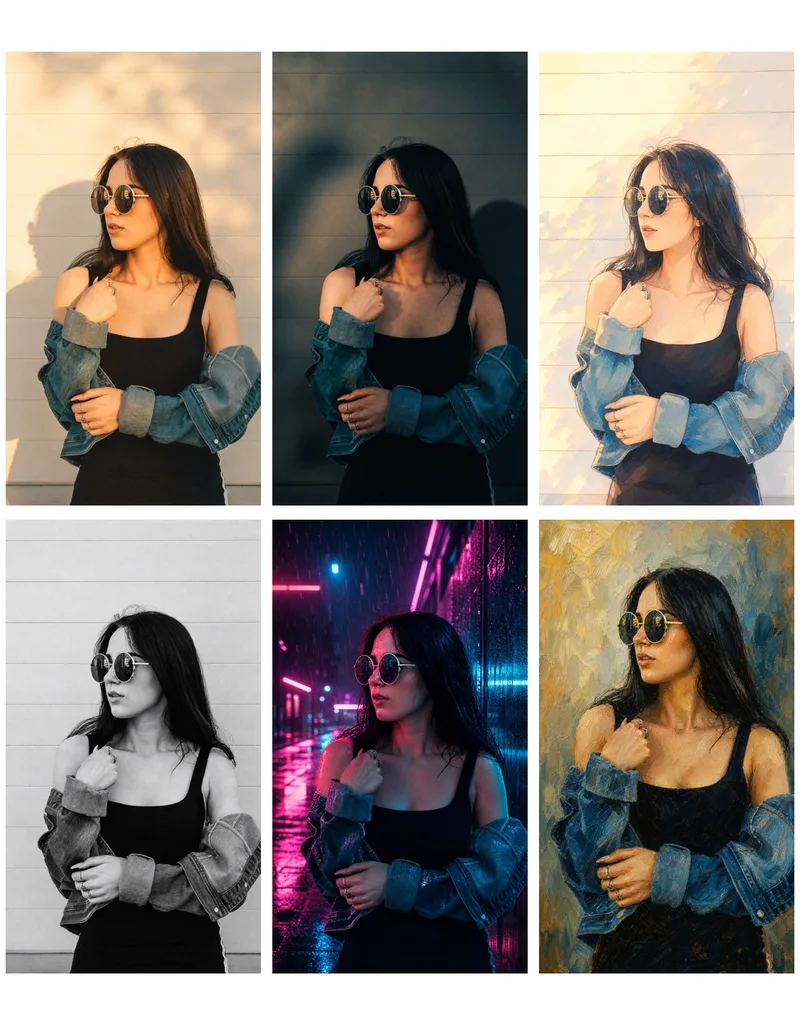
Most photos need one fix before they go on Instagram. Strangers in the background, flat evening light, a landscape shot that has to become a 9:16 story. The usual answer is a detour: export to Photoshop or a mobile editing app, pay for yet another subscription, then upload the file all over again.
What the AI Photo Editor Does
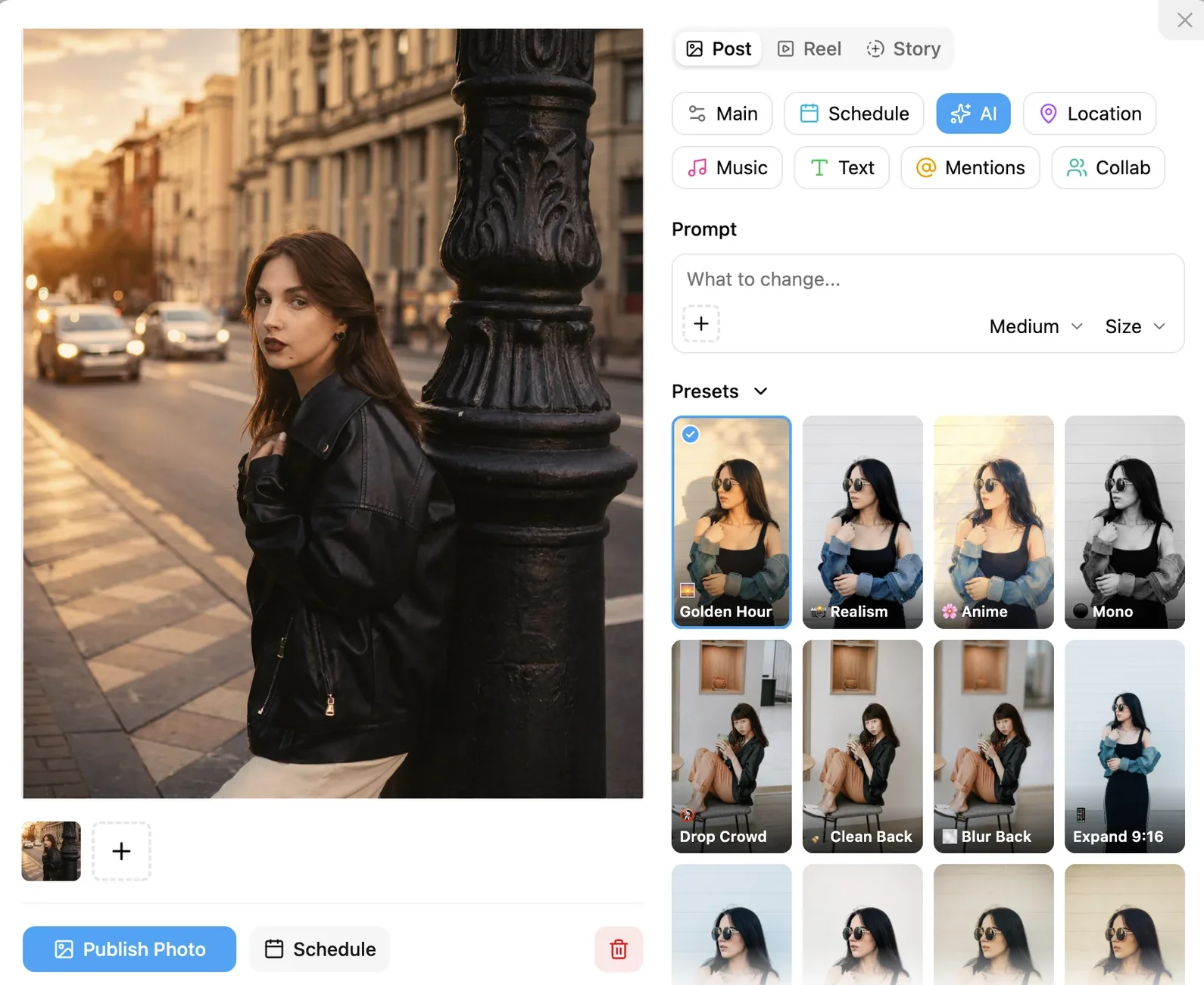
AI Editing and Generation lives in the AI tab of Post Assistant, next to Main, Schedule and Location. It works on the photo you are about to publish, so the edit and the post are one action instead of two. Nothing about your INSSIST plan changes if you never open it.
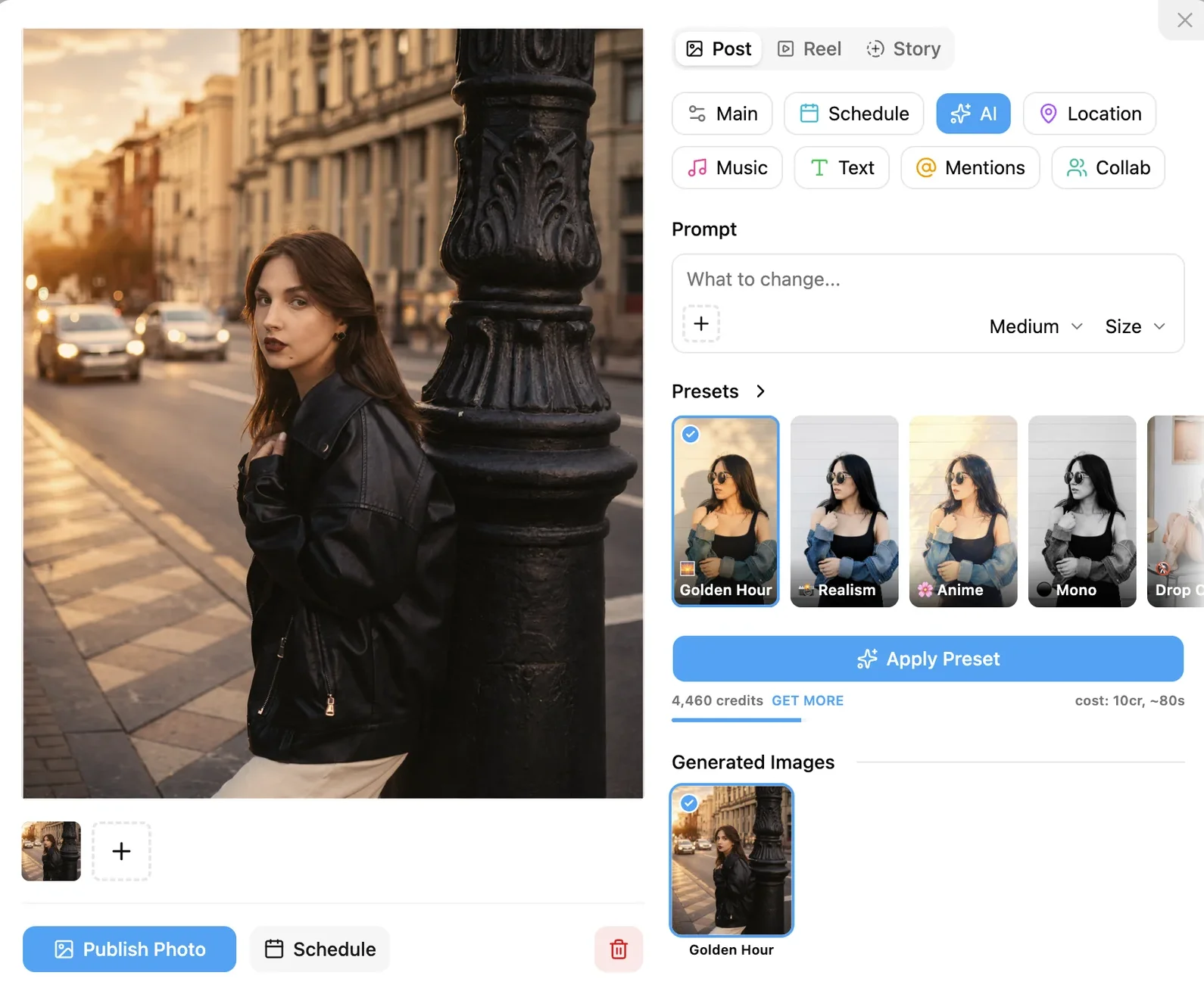
Three ways to use it:
- Presets. A grid of 28 ready-made looks and fixes. Click a card, click Apply Preset, done.
- Prompts. Type the change in plain language: "make it a rainy night with neon reflections", "remove the people in the background", "swap the background for a beach".
- Masks. Paint over the part of the photo you want changed and the rest stays as it is. Covered below.
They combine freely: a look from the grid plus a sentence of your own, with or without a mask.
Every result lands in Generated Images under the prompt box. Pick the version you like, hit Publish or Schedule, and it goes out as a normal Instagram post or story. The original photo stays one click away.
28 One-Click AI Presets for Instagram Photos
Every preset is a tuned prompt with a preview card, so you see the look before you spend a credit. They fall into three groups.
Photo Looks: Instagram Filters Without the Slider Work
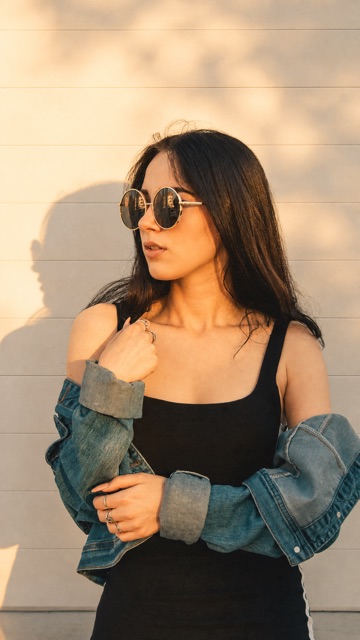
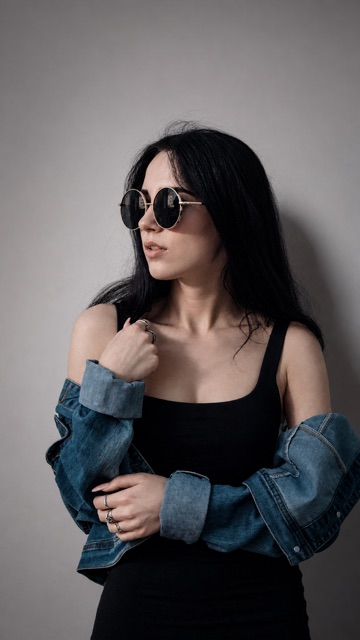
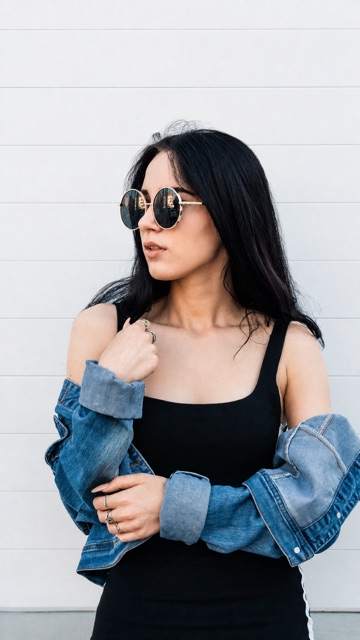
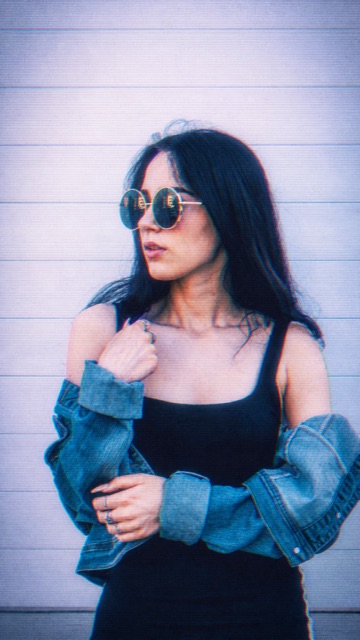
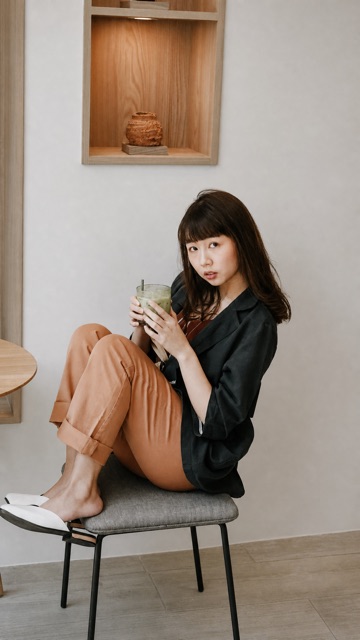
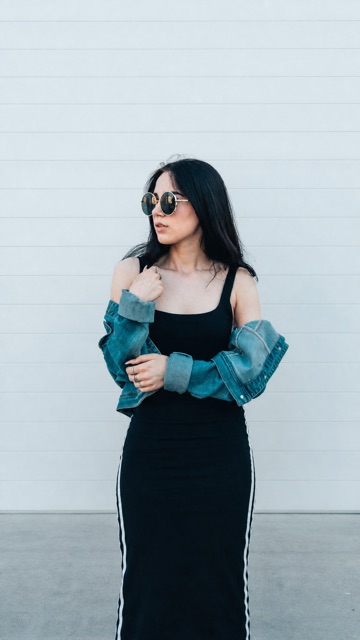
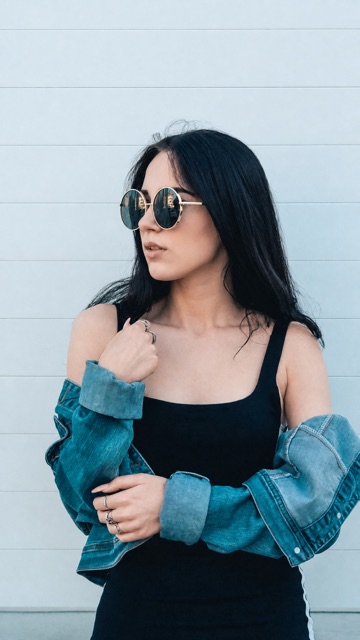
Grade, relight and add grain in one click. Golden Hour, Cinematic and Moody change the mood of a shot. Film 35mm, Polaroid, Direct Flash and Y2K VHS give a phone photo an analog feel. Bright and Editorial clean it up for a fashion or lifestyle feed. Realism, Enhance and Mono are the everyday fixes: sharper, better balanced, or black and white.
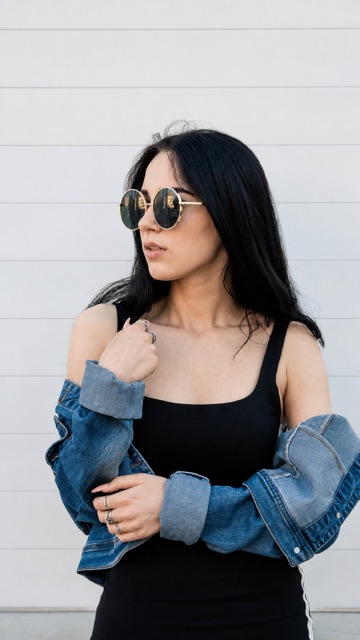
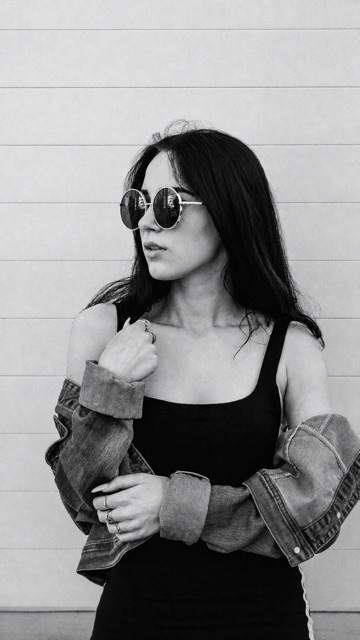
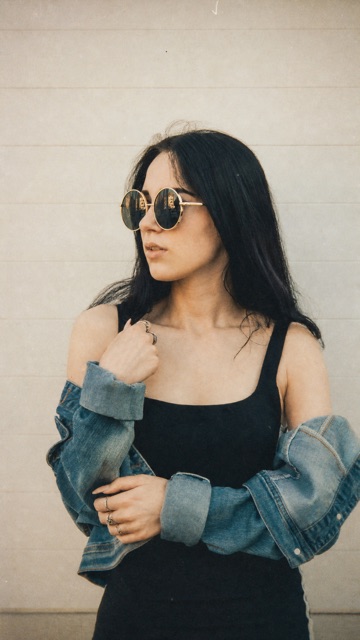
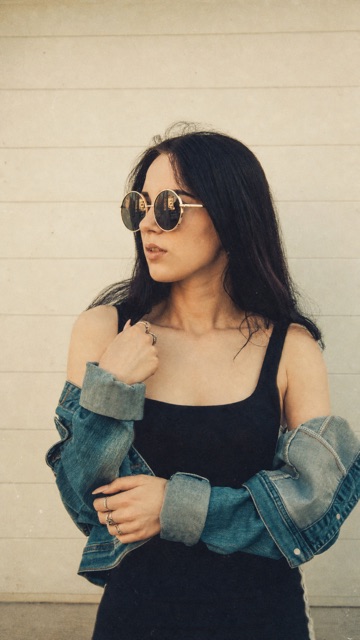
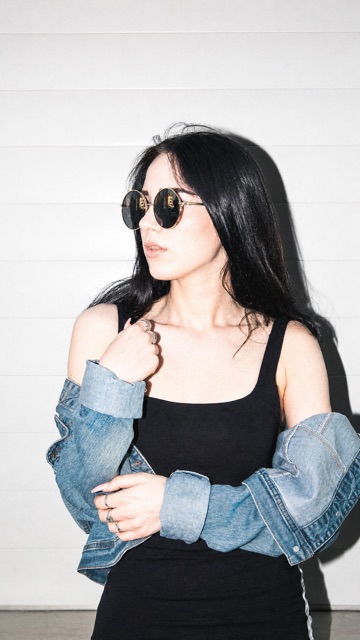
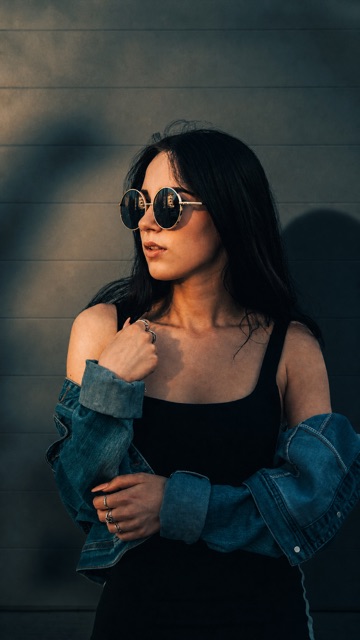
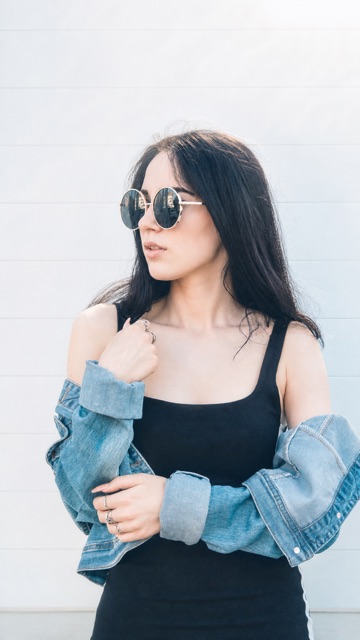
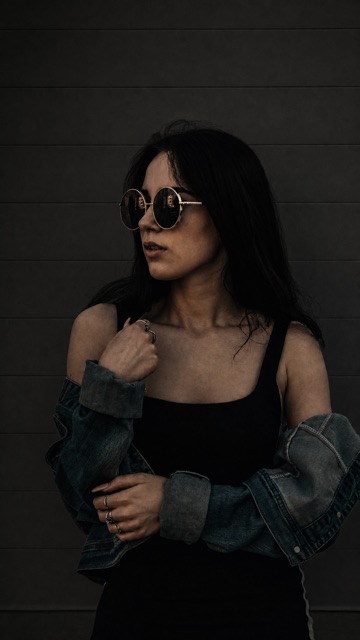
Fix the Photo: Remove People, Clean Backgrounds, Expand to 9:16
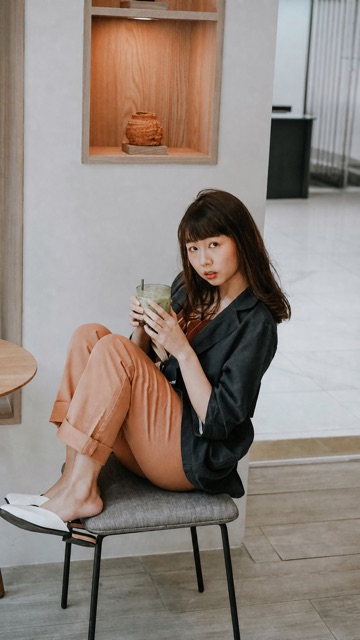
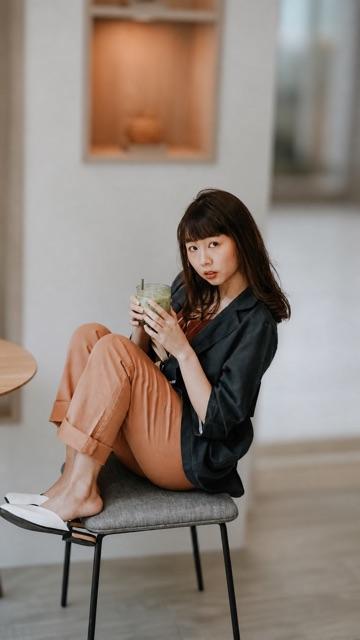
The unglamorous edits that used to need a clone stamp. Drop Crowd removes passers-by from your frame. Clean Back clears clutter behind the subject and Blur Back adds shallow depth of field to a phone photo. Retouch smooths skin without the plastic look. Studio Shot moves a product onto a seamless backdrop. Expand 9:16 extends a landscape photo so it fills a story instead of being cropped.
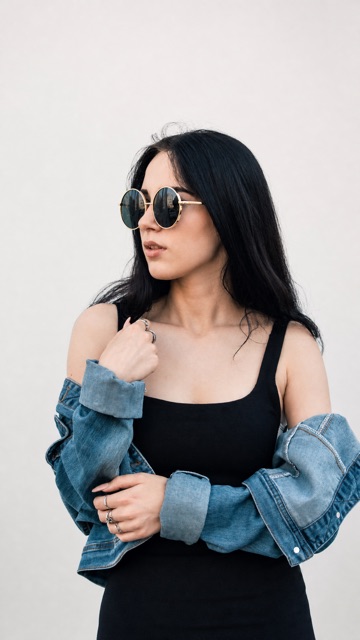
Turn a Photo into Art
For when the feed needs something that is not another photo. Anime, Clay Figure, 3D Toy and Pixel Art make a character out of a portrait. Oil Painting, Watercolor, Pencil Sketch and Renaissance turn it into a piece for the wall. Pop Art and Cyberpunk are the loud ones.
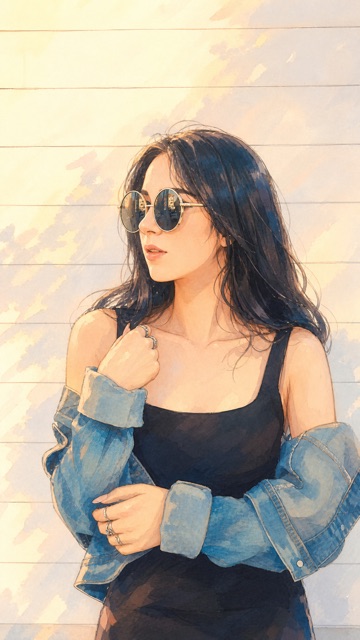
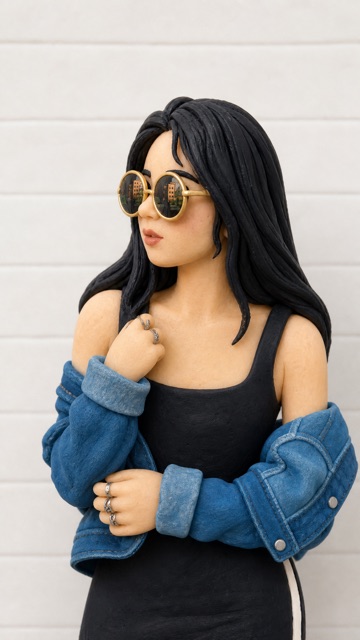
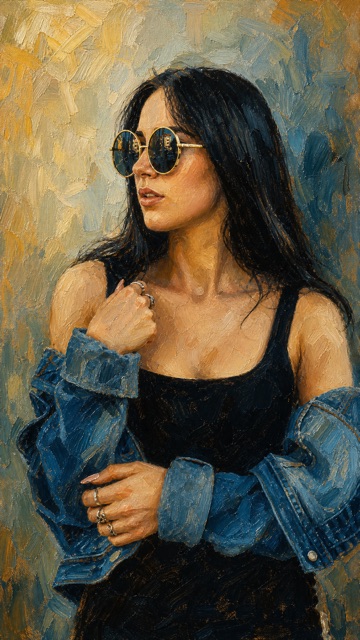
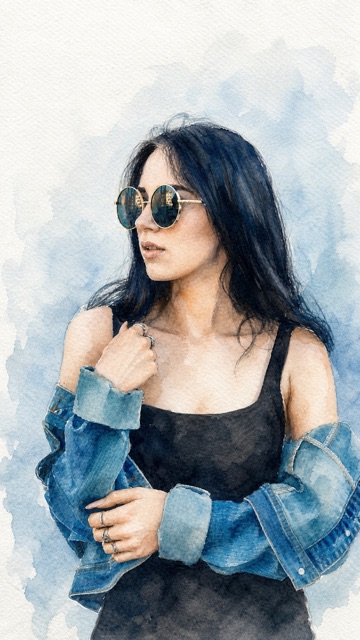
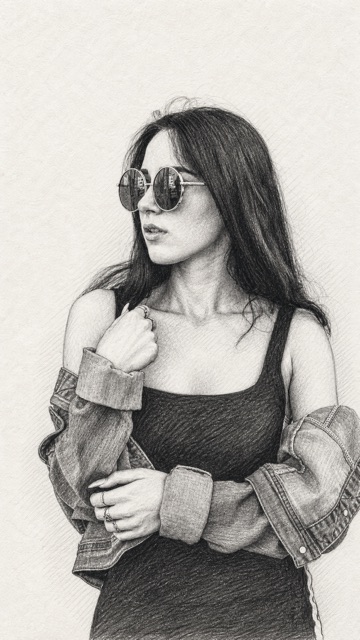
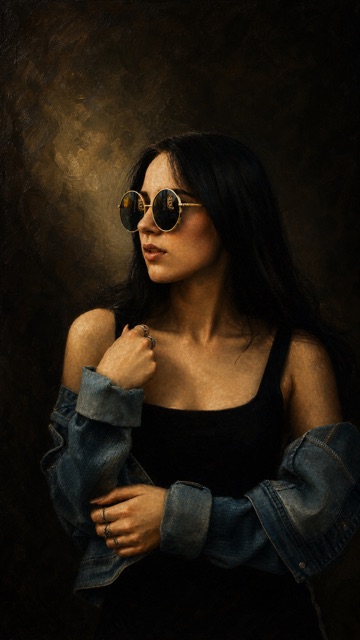
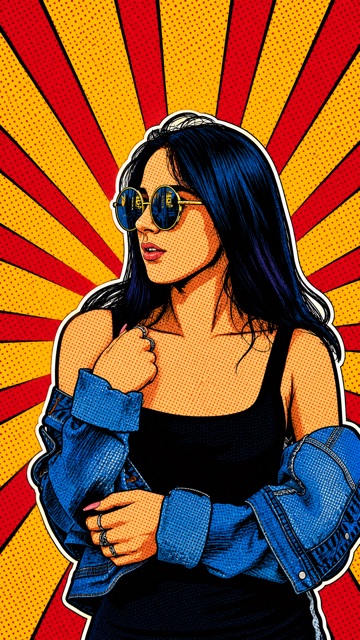
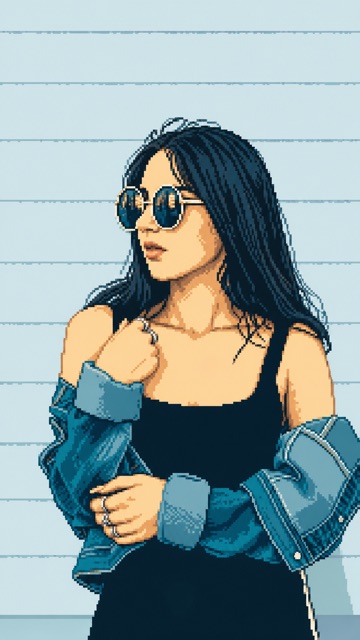
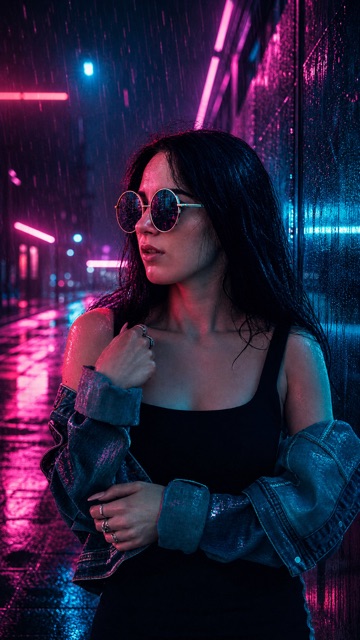
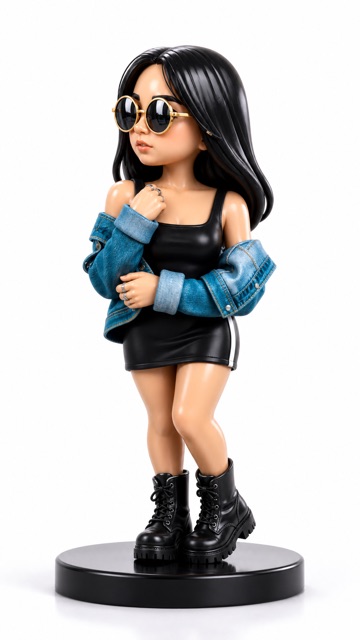
The grid stays open until your first generation, then collapses to a single scrollable row so the Apply button is always within reach.
Write Your Own Prompt
The prompt box takes plain language in any language. Describe the change you want, not the whole picture.
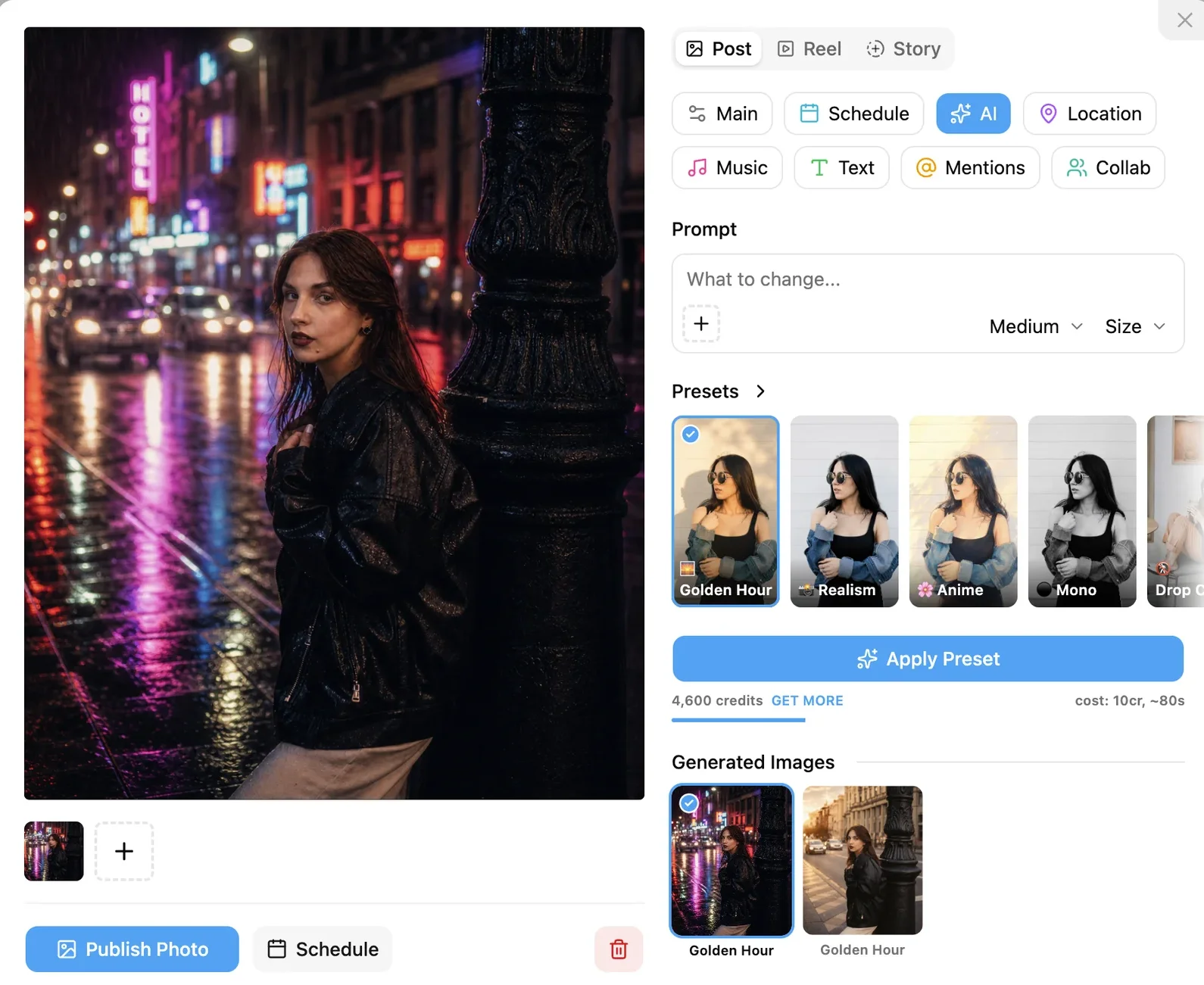
One sentence, one generation:
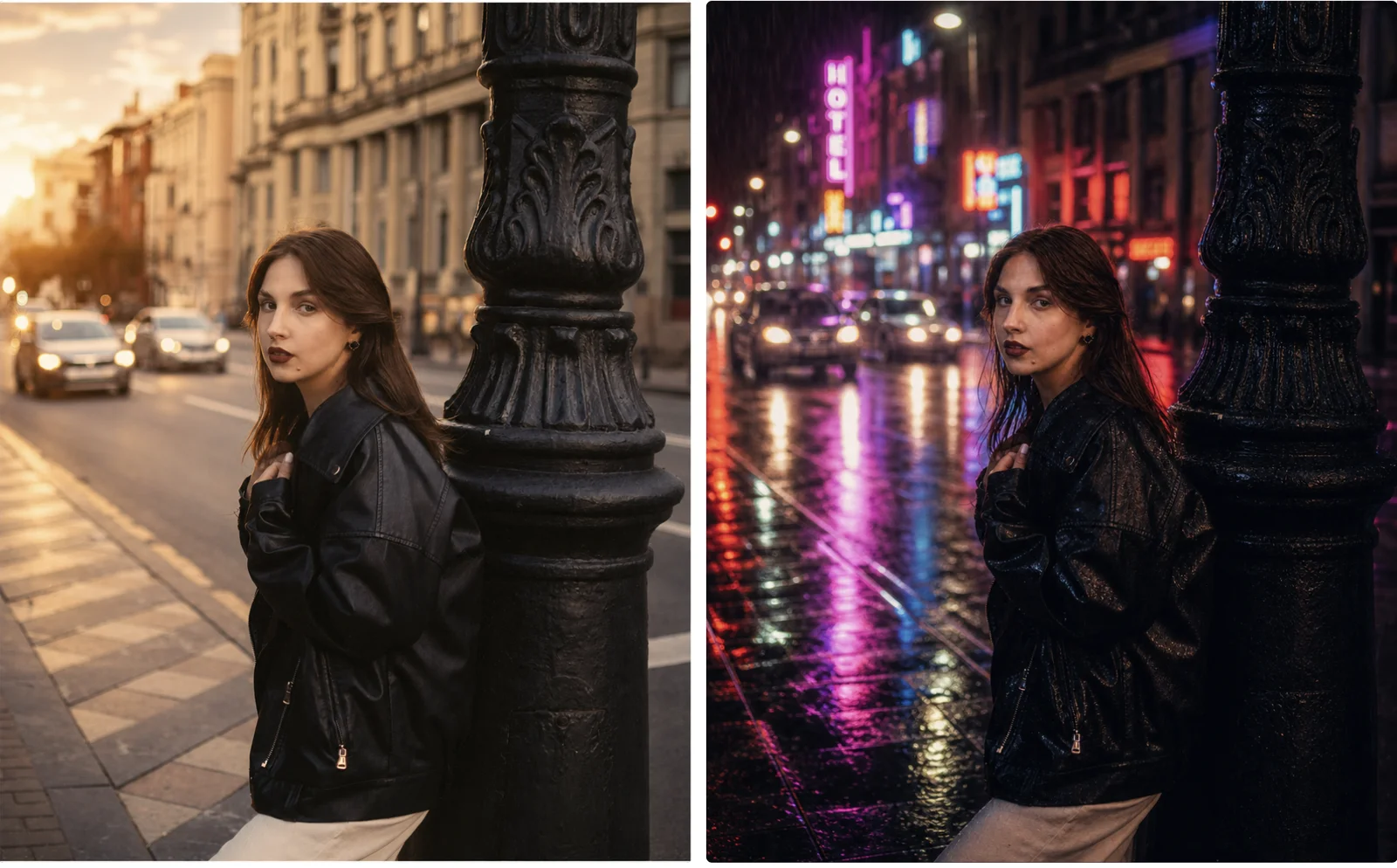
Prompts people actually use, in rough order of popularity:
- Change the background. "make the background a jungle", "add an elegant kitchen behind me", "make the background black"
- Clean the frame. "remove the man and the motorcycle in the background", "remove the second person"
- Fix quality. "enhance the image quality", "make it 4k", "sharpen it"
- Reframe. "expand the ratio", "crop the left side", "rotate 180 degrees"
- Depth. "blur the background", "add an aesthetic blur"
Reference images. The + button under the prompt takes up to three extra images when the result should match a style, a product or a person you already have a photo of.
Edit Only Part of the Photo with a Mask
Sometimes the change is local: the cars on the street, a logo on a shirt, a patch of sky. Painting a mask tells the AI where to work and leaves everything else alone.
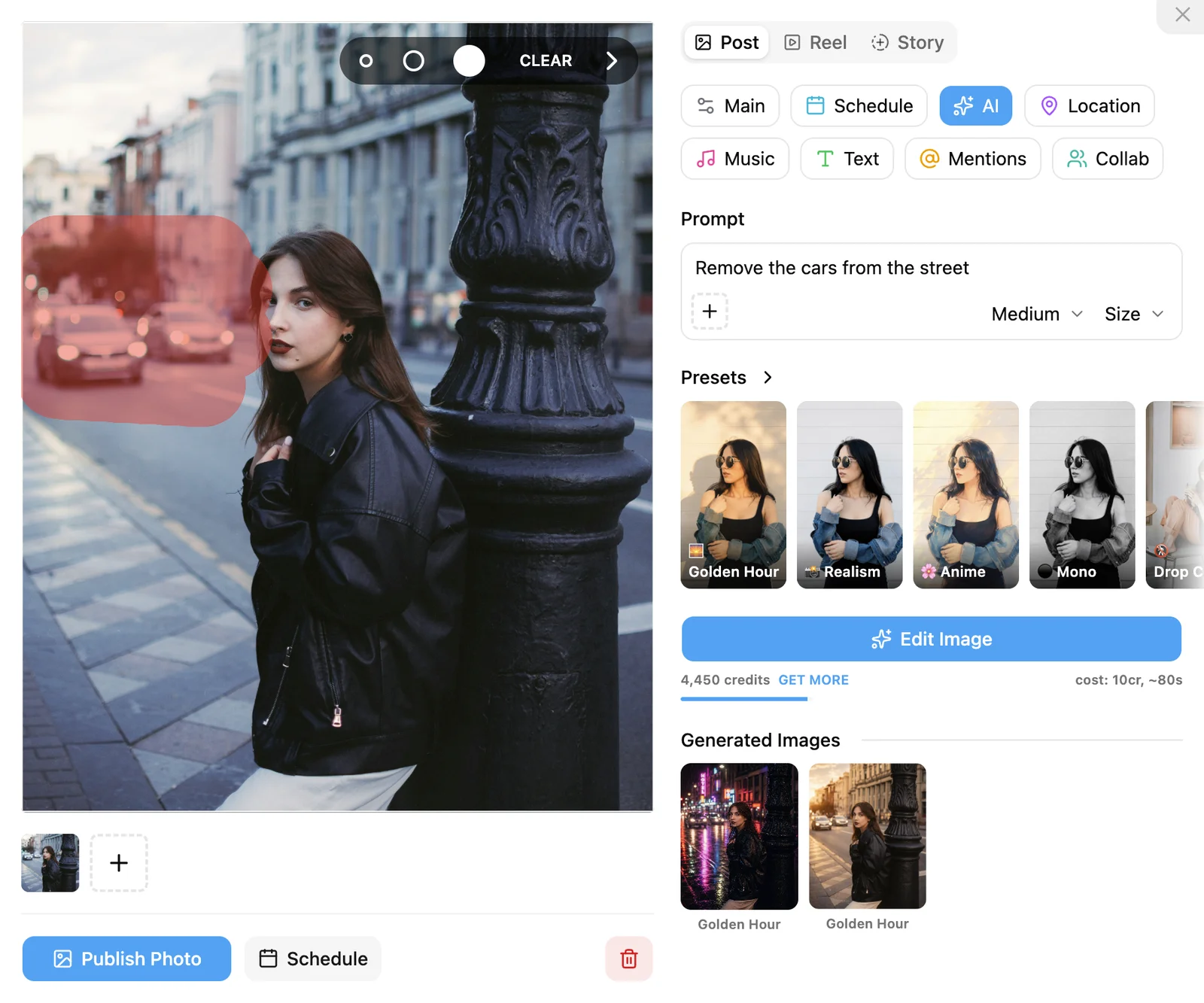
- Open the AI tab and hover over the photo. Click the brush button in the top-right corner of the preview.
- Pick a brush size in the toolbar. Left-click and drag to paint the area, right-click to erase, CLEAR to start over.
- Type what should happen inside the painted area, for example "remove the cars" or "replace with a brick wall", and click Edit Image.
The painted area is the only part the model is asked to change, so faces, text and everything outside it are left as they were. The mask clears itself once you apply a result, so it never sticks to the next edit by accident.
Quality, Size and Credits
Three quality tiers, priced in credits, so a quick experiment does not cost the same as a final cover:
| Quality | Credits | Typical time | Use it for |
|---|---|---|---|
| Low | 2 | ~15 s | Trying an idea |
| Medium | 10 | ~40 s | Everyday posts, the default |
| High | 50 | ~100 s | Covers, ads, anything printed |
Sizes match where the image is going: Original, Square 1:1, Portrait 4:5, Story 9:16 and Landscape 1.91:1. Leave it on Original and INSSIST keeps the aspect ratio of the photo you dropped in, except on reels and stories, where it defaults to 9:16.
What It Costs
AI Generation is an add-on, not a plan. There is no separate photo editing subscription to manage.
- Free and anonymous users get a starter grant of credits per account, enough for a real trial rather than a teaser. No card, no sign-up wall.
- PRO Monthly users get 500 credits every billing cycle, included in the plan they already pay for. That is about 50 medium-quality edits a month, plus the full preset library unlocked.
- Need more? Credit packs are a one-off purchase. Bought credits never expire, carry across billing cycles, and work on any plan.
If a generation fails on our side, the credits are refunded automatically. Closing the tab or losing the connection mid-generation still spends them, so keep the tab open until the result lands.
FAQ
Can I edit Instagram photos with AI for free?
Yes. Every account starts with trial free credits, no card required. Free accounts can use the prompt box, the mask and the presets in the first row of the grid.
Do I need Photoshop, Lightroom or Canva?
No. The editor runs inside Post Assistant. Drop in the photo, edit, publish. Nothing to export or re-upload.
Does it work on PC and Mac?
Yes. INSSIST is a Chrome extension, so it works on Windows, macOS, Linux and ChromeOS.
Is this a separate subscription?
No. It is an optional add-on inside INSSIST. Free accounts get starter credits, PRO Monthly accounts get a monthly grant, and packs are there only if you run out.
Which model is behind it?
OpenAI's image model, called through INSSIST's servers. You do not need an OpenAI key. INSSIST does not use your photos for training and does not store them on its servers.
Can I edit a photo that is already on Instagram?
Not in place, Instagram does not allow replacing the media of a published post. Download it with INSSIST, run it through the AI tab, and publish the new version.
Does it work on videos and reels?
No. AI Editing works on photos only, including photos in a carousel or story. Videos and reels are not supported.
What happens if a generation fails?
If the failure is on our side, the credits go back to your balance automatically. A generation cut short by closing the tab is not refunded.
Do generated images look obviously AI?
The photographic presets are tuned to stay believable: grading, light and grain rather than a new face. The artistic ones are meant to look generated.
Conclusion
The gap between "I have a photo" and "I have a post" used to involve a second app and a second bill. AI Editing in INSSIST closes it: 28 presets for when you know the look you want, a prompt box and a mask for when you know exactly what to change, and enough free credits to find out whether it is for you before spending anything.
Open Post Assistant, drop in a photo, and click the AI tab.
Latest posts
INSSIST & Instagram Insights
Learn Instagram marketing strategies and discover INSSIST features
Hanna Laas
10 Sep 2025
Ethan Campbell
1 Sep 2025
Ethan Campbell
9 Sep 2025
Hanna Laas
1 Aug 2025
Hanna Laas
1 Jul 2025
Ethan Campbell
12 Apr 2026
Supercharge your Instagram
Join over 500,000+ creators growing with INSSIST.