Chrome Extension for Instagram: What It Does vs the App
What a Chrome extension for Instagram adds to instagram.com in 2026, what the phone app still does better, and how to pick a safe one.

Hanna Laas
Published 13 Oct 2026

Table of contents
- What is a Chrome extension for Instagram?
- What can Instagram's desktop website do without an extension?
- What can a Chrome extension do for Instagram that the app cannot?
- What types of Chrome extensions for Instagram are there?
- Is it better to manage Instagram from desktop or mobile?
- How does INSSIST turn instagram.com into a desktop Instagram client?
- Are Chrome extensions for Instagram safe?
- How do you install a Chrome extension for Instagram?
- FAQ
A Chrome extension for Instagram is a browser add-on that adds features to instagram.com: posting Stories from a computer, scheduling, downloading media, viewing Stories anonymously, and more. It runs inside the Instagram tab where you are already logged in, so it fills the gaps between Instagram's website and the phone app without a separate login. Meta does not make one itself: every Instagram extension in the Chrome Web Store comes from an independent developer.
What is a Chrome extension for Instagram?
A Chrome extension for Instagram is a small program you install from the Chrome Web Store that changes how instagram.com looks and works. Most add buttons, panels or menus to the page you already use. You still browse the same feed, with the same account.
How a tool connects to Instagram decides what it can do. Desktop tools come in two kinds:
| Tool | How it connects | Accounts |
|---|---|---|
| Browser extension | Runs inside your logged-in instagram.com tab | Personal, creator and business |
| API scheduler | Meta's Graph API, through a connected Facebook Page | Creator and business only |
Because a browser extension uses the session you already have open, it never needs your Instagram password, and it works on personal accounts too. API schedulers such as Meta Business Suite, Buffer and Later run on their own websites instead.
What can Instagram's desktop website do without an extension?
Instagram's desktop website covers browsing, direct messages, comments and basic posting. As of 2026 you can upload photos, videos and carousels from your computer, and videos publish as Reels (PostPlanify).
What the desktop website still lacks in October 2026:
- Stories: the desktop layout of instagram.com has no Story upload. Instagram's mobile website has supported Story posting for years, which is why switching Chrome to a phone-sized mobile view in DevTools works, but that view has no music and no scheduling.
- Music: the licensed music library for Stories and Reels lives in the phone app.
- Scheduling: there is no scheduler on instagram.com. Meta Business Suite schedules posts, Reels and Stories for free, but only for professional accounts connected to a Facebook Page (FutureTweets).
- Live broadcasting, AR effects and full Notes: phone only (Tecnoloblog).
Instagram's website does have a native dark theme, covered in our Instagram dark mode guide.
What can a Chrome extension do for Instagram that the app cannot?
A Chrome extension can add things the Instagram phone app has never offered: downloads in original quality, Story viewing without a "seen" receipt, reading DMs without a read receipt, an ad-free feed and bulk work with files from your computer. It also brings back phone features the website lacks, such as Stories with music.
| Task | Phone app | Website | Website + extension |
|---|---|---|---|
| Photos, carousels, Reels | ✓ | ✓ | ✓ |
| Stories | ✓ | Mobile view | ✓ |
| Music on Stories and Reels | ✓ | ✗ | ✓ |
| Scheduling | No Stories | ✗ | ✓ |
| Content calendar | ✗ | ✗ | ✓ |
| Download posts and Reels | ✗ | ✗ | ✓ |
| Anonymous Story viewing | ✗ | ✗ | ✓ |
| DMs without read receipts | ✗ | ✗ | ✓ |
| Ad-free feed | ✗ | ✗ | ✓ |
| Unfollower and bot tracking | ✗ | ✗ | ✓ |
| Live and AR effects | ✓ | ✗ | ✗ |
The phone app's own scheduler covers feed posts, carousels and Reels but not Stories (SocialRails).
What types of Chrome extensions for Instagram are there?
Chrome extensions for Instagram fall into six jobs. Account risk depends on what the extension does on your behalf, so it helps to sort them by job rather than by brand.
| Job | What it does | Account risk |
|---|---|---|
| Posting and scheduling | Stories, Reels, carousels and a calendar from desktop | Low |
| Downloads | Save photos, Reels, Stories and Highlights | Low |
| Privacy | Anonymous Story viewing, DMs without read receipts | Low |
| UI and focus | Hide ads, Reels, Explore or notification counts | Low |
| Analytics | Sort feeds by views, export metrics, compare accounts | Low |
| Growth automation | Likes, follows or DMs on your behalf | Depends on pace |
Growth automation is safe only when it stays within Instagram's daily action limits and spaces actions out like a person would. Our guide to Instagram bans, blocks and limits lists the thresholds, and the INSSIST growth autopilot guide shows how INSSIST paces its own growth tools.
Is it better to manage Instagram from desktop or mobile?
Desktop is better for planning and managing Instagram; the phone is better for capturing and going live. Most creators and businesses end up using both.
Desktop wins when you:
- Write long captions and reply to DMs with a full keyboard
- Upload photos and videos edited on your computer, without moving files to a phone
- Plan a week of content in a calendar and work in batches
- Switch between several accounts in separate browser profiles
The phone wins when you:
- Shoot and post on the spot with the camera
- Go Live, use AR effects or post Notes
- Want push notifications the moment someone comments
Tablet users have a third option: Meta released a native Instagram app for iPad and redesigned it in May 2026 (9to5Mac).
How does INSSIST turn instagram.com into a desktop Instagram client?
INSSIST is a Chrome extension for Instagram that adds a menu and side panels to instagram.com. You open it from the INSSIST icon in Instagram's left sidebar, and every feature works inside the same tab and the same logged-in session.
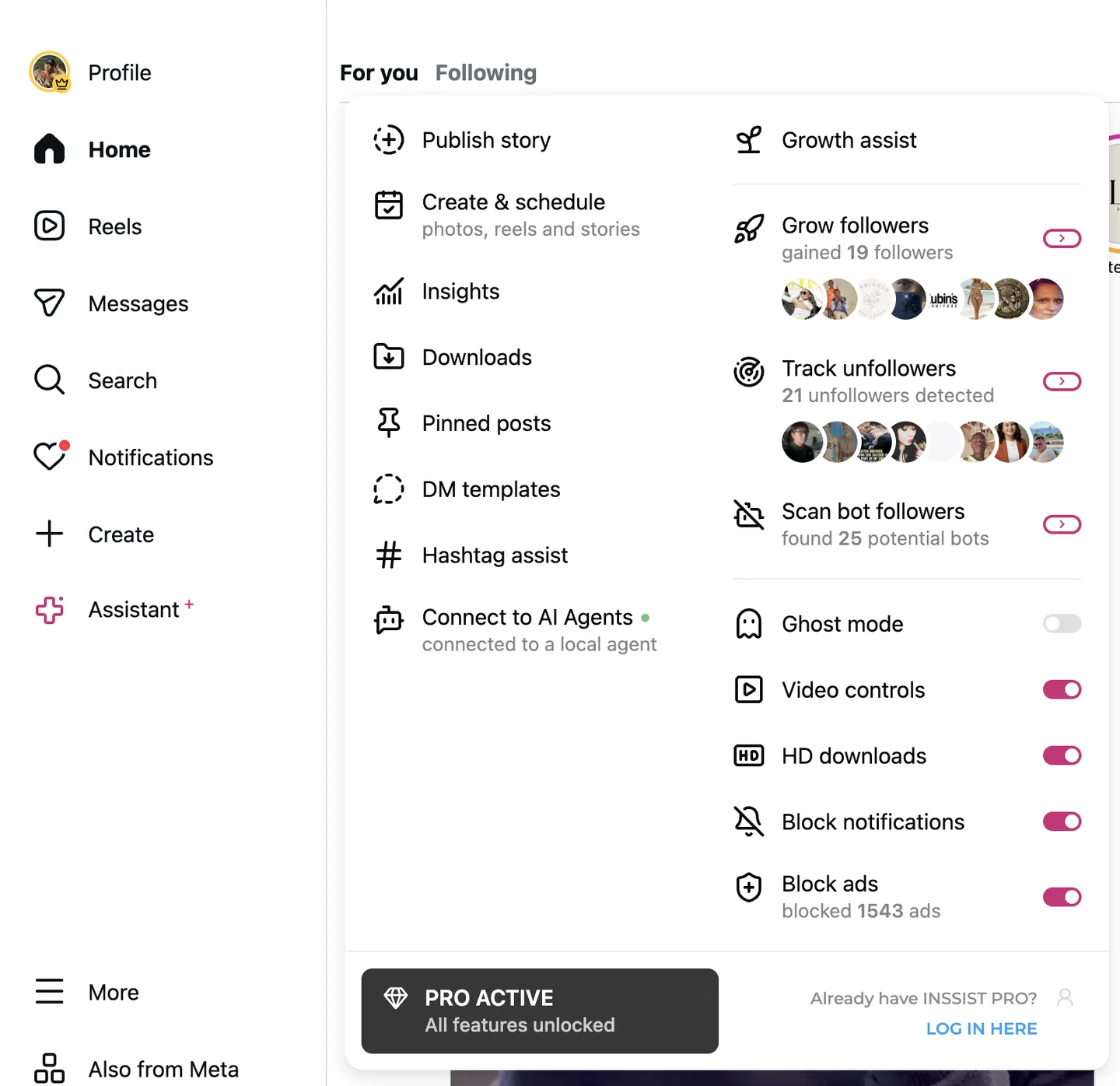
The INSSIST menu has two columns:
- Content: Publish story, Create & schedule (photos, reels and stories), Insights, Downloads, Pinned posts, DM templates, Hashtag assist and Connect to AI Agents.
- Account and browsing: Growth assist, Ghost mode, Video controls, HD downloads, Block notifications and Block ads.
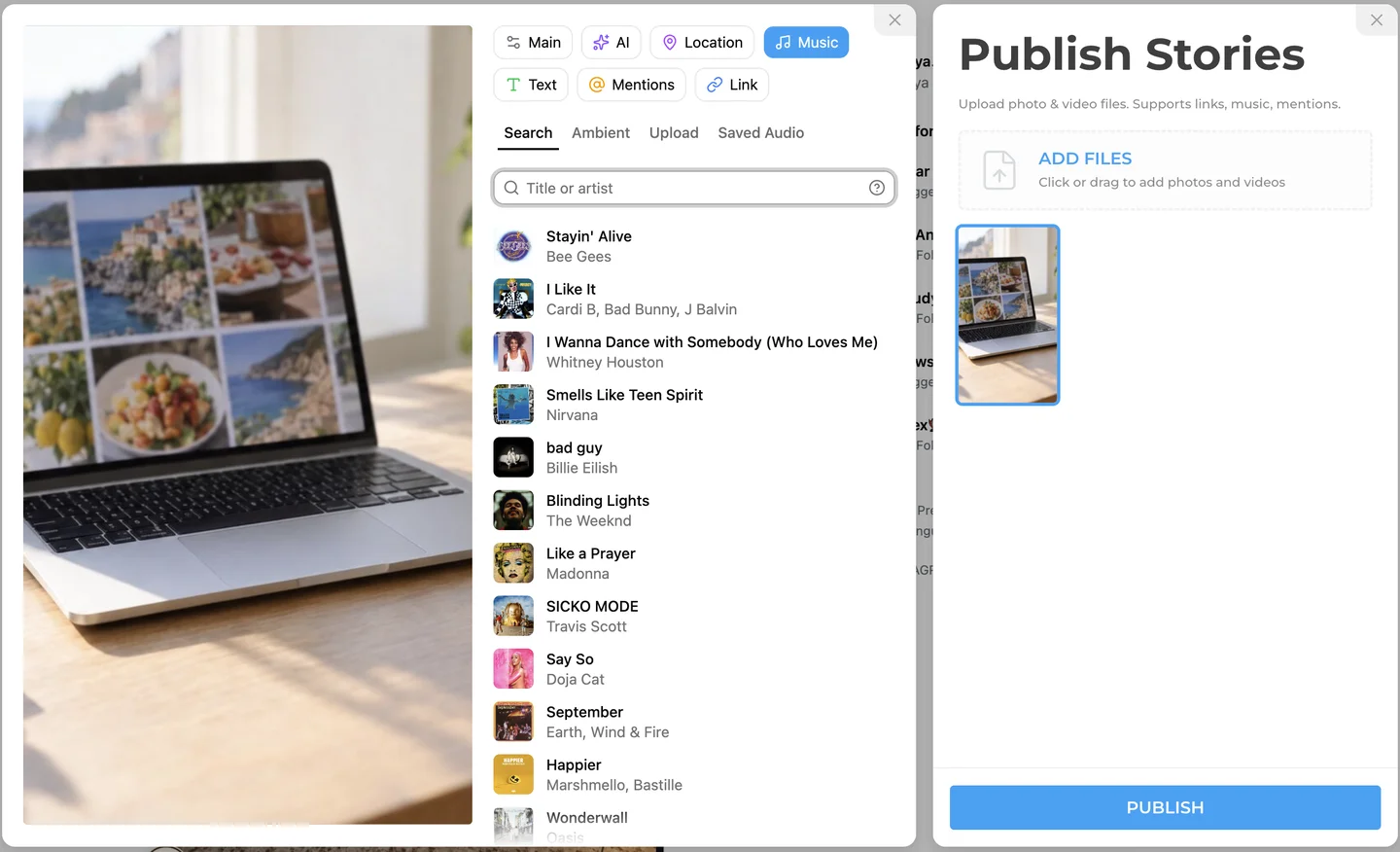
Publishing Stories from Chrome. INSSIST's Publish Stories panel takes photo and video files from your computer and opens an editor with tabs for Location, Music, Text, Mentions and Link. The Music tab searches Instagram's track library or lets you upload your own audio. Step-by-step instructions are in how to post to Instagram from PC and how to add music to Instagram Stories on PC.
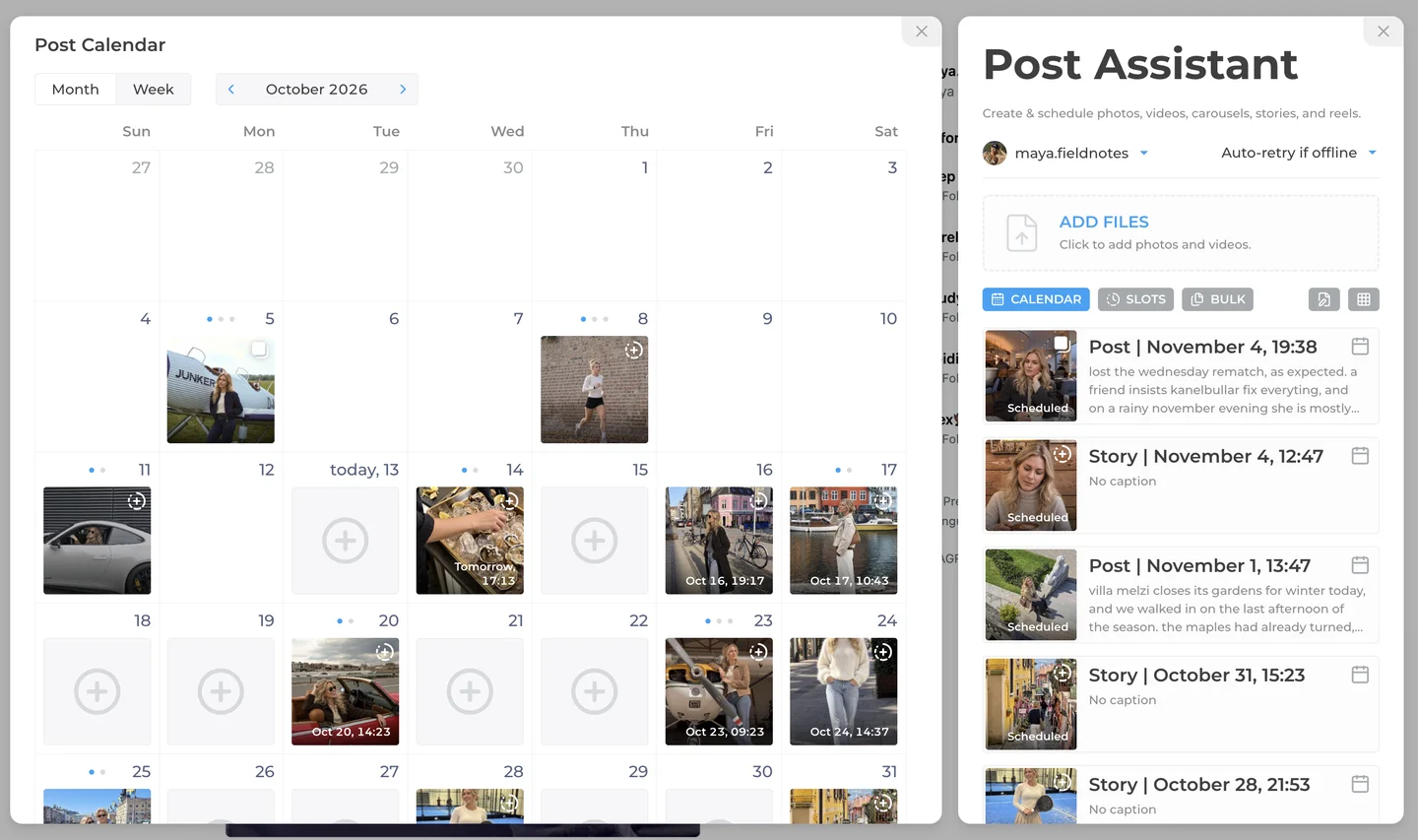
Scheduling in a calendar. INSSIST's Post Assistant schedules photos, videos, carousels, Stories and Reels, and its Post Calendar shows everything planned by month or week. See the Instagram scheduling guide for time slots and bulk upload.
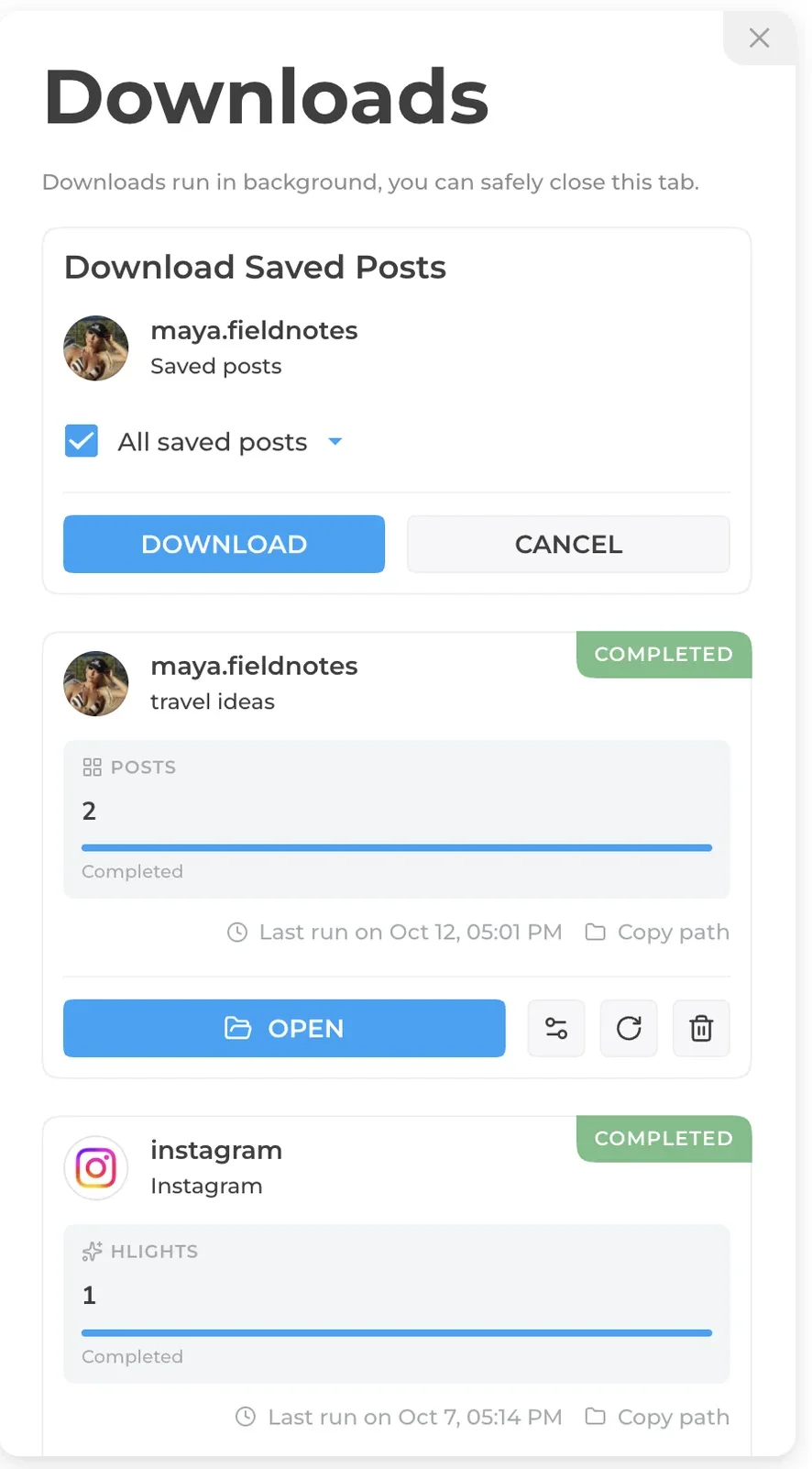
Downloads. INSSIST Downloads saves posts, Reels, Stories and Highlights, and can download a whole collection of your saved posts in the background while you keep browsing. The Instagram downloader guide covers single posts; bulk profile downloads covers whole accounts.
Privacy and audience tools. INSSIST Ghost Mode lets you watch Instagram Stories anonymously and read DMs without marking them as read. Growth assist adds unfollower tracking and a bot follower scan where every removal needs your approval.
AI agents. INSSIST ships an MCP server so Claude Code, Codex or Cursor can publish, schedule and read insights through your own browser. The INSSIST MCP guide lists every tool.
What is free and what is PRO: publishing Stories works on the free plan, with a small INSSIST badge on the Story. Scheduling, the music library, Ghost Mode, HD downloads, links and mentions in the Story editor, and badge-free Stories come with INSSIST PRO. Growth tools, unfollower tracking, bot detection and Insights are part of the monthly PRO plan.
Live broadcasts, AR camera effects and Notes stay on the phone: those are camera and app features no browser extension can add.
Are Chrome extensions for Instagram safe?
A Chrome extension for Instagram is as safe as the developer behind it. Posting, downloading and interface tweaks do not act on other accounts, so they carry little account risk. The bigger risks in 2026 are abandoned or malicious extensions:
- Manifest V2 shutdown. The Chrome Web Store permanently removed all remaining Manifest V2 extensions on 31 August 2026 (gHacks). Many older Instagram downloaders and Story viewers disappeared with them.
- Data-leaking extensions. A security researcher found 287 Chrome extensions leaking browsing data in February 2026 (The Register), and Instagram users have reported malware hidden in "downloader" extensions (Reddit).
A six-point check before you install:
- Publisher: a named company with a website, privacy policy and support contact.
- Update date: updated within the last few months, and built on Manifest V3.
- Reviews: recent reviews, not only old ones, and replies from the developer.
- Permissions: the install dialog should name instagram.com and the developer's own site, not "all websites".
- Password: the extension should never ask for your Instagram password; it should use the session you are logged into.
- Automation pace: if it automates likes or follows, it should pace actions and let you set limits.
How do you install a Chrome extension for Instagram?
Installing a Chrome extension for Instagram takes under a minute:
- Open the extension's page in the Chrome Web Store.
- Click Add to Chrome, then Add extension.
- Click the puzzle icon in Chrome's toolbar and pin the extension.
- Open instagram.com and log in as usual.
- Look for the extension's icon or menu on the page. For INSSIST, it appears in Instagram's left sidebar.
The same steps work in Microsoft Edge, Brave, Opera and other Chromium browsers that install from the Chrome Web Store.
FAQ
Is there an official Instagram Chrome extension?
No. Meta does not publish an Instagram extension for Chrome (iImagined). Its official desktop options are the instagram.com website and Meta Business Suite for professional accounts. Every Chrome extension for Instagram is made by an independent developer.
Can I post Instagram Stories from Chrome?
Yes, in two ways. Instagram's mobile website accepts Stories, so a phone-sized view in Chrome DevTools lets you post a plain Story. A Chrome extension for Instagram such as INSSIST adds Story publishing to the normal desktop layout, with music, links and mentions, for every account type.
Do Chrome extensions for Instagram work in Edge or Brave?
Most do. Edge, Brave, Opera and other Chromium browsers can install extensions from the Chrome Web Store. Check the extension's listing for its minimum browser version.
Can a Chrome extension get my Instagram account banned?
Posting, scheduling, downloading and anonymous viewing do not act on other accounts, so they rarely cause trouble. Any tool that likes, follows or sends DMs faster than a person would can trigger action blocks. Keep automation slow and within the limits in our Instagram bans and limits guide.
Why did my Instagram downloader extension stop working?
The most common reasons in 2026 are the Chrome Web Store's removal of Manifest V2 extensions on 31 August 2026, takedowns of extensions caught with malware, and Instagram site changes the developer has not caught up with. Switch to an extension that was updated recently and runs on Manifest V3.
Can AI agents like Claude use a Chrome extension for Instagram?
Yes, if the extension exposes an MCP server. INSSIST connects Claude Code, Codex, Cursor and other MCP clients to your Instagram through your own browser, without sharing your password. Setup is in the INSSIST MCP guide.
Latest posts
INSSIST & Instagram Insights
Learn Instagram marketing strategies and discover INSSIST features

Hanna Laas
10 Sep 2025


Ethan Campbell
1 Sep 2025

Ethan Campbell
9 Sep 2025

Hanna Laas
1 Aug 2025


Hanna Laas
1 Jul 2025

Ethan Campbell
12 Apr 2026

Supercharge your Instagram
Join over 500,000+ creators growing with INSSIST.